Manage Patient Consents
|
In axiUm, patient consents are created as Crystal Reports that patients can view. A signature can be captured electronically and tied to the consent, making it a legal contract. Consents can also require patient initials to be captured electronically for each page of a consent with multiple pages. Consents can be general in nature (e.g., a release of information consent) or can be treatment-based and associated with one or more treatments. Consents can also be set to expire if necessary. Consent requirements can be customized by your institution. If consent is required for a patient, a Consent Required (
Additionally, any treatments in the EHR that require consent display with the same Consent Required (
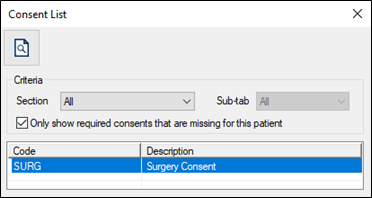
Note: While this section focuses on the Attachments/Consents module, you can also complete some of these tasks from the Attachments/Consents tab in the EHR module and Case Management module.  View Missing Consents from the Status Bar View Missing Consents from the Status Bar
Note: The options are customizable by your institution during Attachments/Consents setup. Add Patient Consents
If a consent form is missing, you can add one from several places:
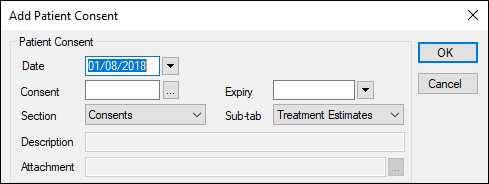
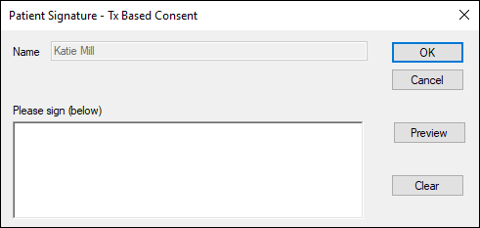
Signed initials may be required for each page in a patient consent in addition to full signature(s). If made required, each page must be initialed in an Initials window after being viewed and before the entire consent can be signed. If initials are not part of the form, a Signature window displays as usual. A Preview button is available. This allows you to view the consent page or entire form again before initialing or signing. To add a patient consent:
Attachments/Consents module
EHR module
Status Bar
Ortho Manager module
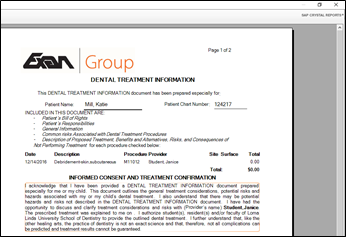
Tip: Click the Select All or Deselect All buttons to make your selections more quickly. Example: Representative’s relationship to patient (if applicable). The first consent page displays. Note: If the consent requires patient initials for each page, only the first page displays. If the consent does not require patient initials, you can review all consent pages as usual.
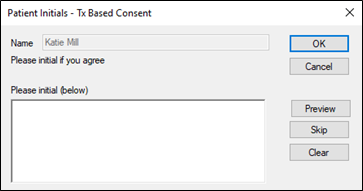
If patient initials are required, the Patient Initials window opens. Note: If the consent doesn’t require initials, the Patient Signature window displays. Tip: You can click the Preview button to view the consent page or entire form again.
Note: If the initials are optional for the page, you can click the Skip button. When all pages has been reviewed and initialed (if necessary), a Patient Signature window opens.
Tip: You can click the Preview button to view the entire consent form. Example: A Witness Signature window. Manage Patient Consents
Edit the Consent Details
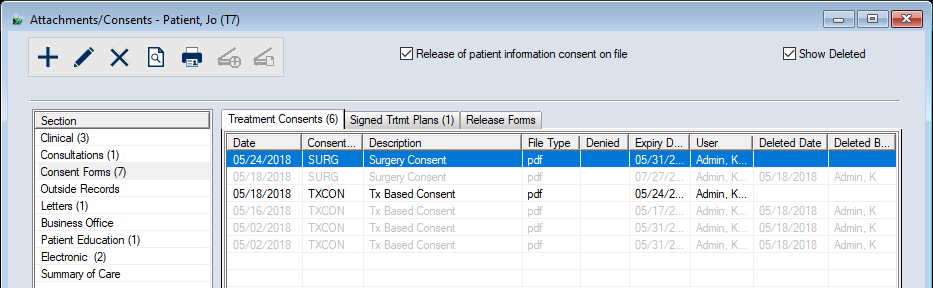
Note: You can also select a consent, right-click and select Edit Date/Description. Tip: From the Entered field, you can view the date/time that the attachment was created. Note: The contents of the file cannot be changed. Move Consents
Note: Only sections/sub-tabs that are configured to store consents display in the drop-down lists. Delete Consents
Preview/Print Consents
Print the Attachment List
A list of all the attachments within the Section and Sub-tab prints. Set the Release of Information Consent Flag
If configured by your institution, axiUm can warn you when a patient is selected that does not have a release of information consent on file. This flag is used to ensure that the patient has agreed (and signed a consent) allowing you to send their information to insurance companies for claim submission. The release of information warning is tied to a flag on the patient’s record—not a specific consent. Once you have added the appropriate consent to the patient’s file, you will manually need to update this field. The flag can be selected (or de-selected) in two different areas in axiUm. Note: Changing it in one location changes it in the other. To set the Release of Information Consent flag:
|
 ) indicator displays in the status bar.

 ) icon.
 ) icon.
 ) icon.
 ) icon to display the Edit Patient Consent window.
 ) icon.
 ) icon to print the consent.